Getting Started With Javascript Debugger in Chrome

When getting started with js, one of the first debugging techniques you learn is console.log to see what’s going on. For a variety of reasons, this behaviour sticks. It’s time to level up my friends! There is a better way - the Chrome Javascript debugger.

Here is a gentle introduction to the js debugger, and an example of some neat things you can do with it.

Based on a true story, but I’ve simplified things in this case :)

Below is the script we will be debugging. The problem in this case is clear (the extra \n in value). We’ll go through the steps you would use to find this problem with the debugger. You can load this script and follow along: http://meeech.amihod.com/debug.html.

1
2
3
4
5
6
7
8
9
10
11
12
13
14
15
//Pretend this value returned from a remote source
var value = "hang\n";

setInterval(function(){
    switch(value) {
      case 'hang':
        document.body.innerHTML = "Hang in there!";
        break;
      case 'up':
        document.body.innerHTML = "Up";
        break;
      default:
        document.body.innerHTML = "No good!";
    }
},1000);

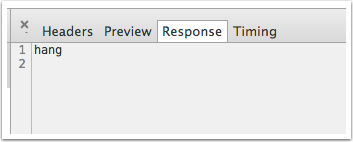
Pretend value is actually coming from a remote source. You inspect the response and don’t notice the carriage return.

We’re expecting that our script will show “Hang in there!”, but instead, we keep seeing “No good!”.

  • Open your Developer Tools (View > Developer > Developer Tools)
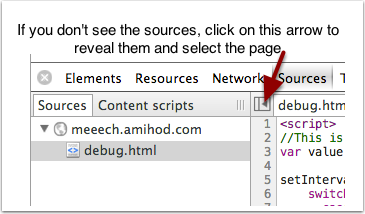
  • Click on the Source tab. Here is where you can find all the scripts running on a page. [The sidebar might not be showing- make it show by clicking on the arrow]. Select the debug.html page.
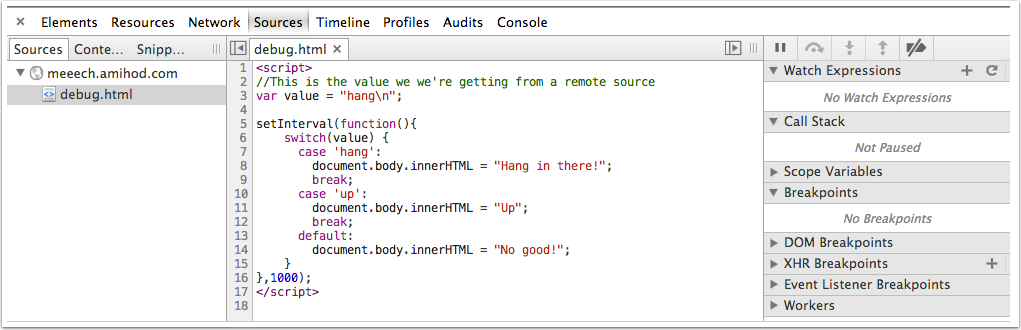
  • You should now see something like this:
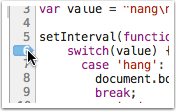
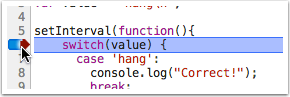
  • First thing we want to do is see what the switch statement thinks its value is. Let’s go ahead, and add a breakpoint. To add a breakpoint, click on the line number - in this case, line 6. The blue mark is showing a breakpoint. Even if you reload the page, the breakpoint will remain.
  • The script will now pause when it hits the breakpoint - you now see a red mark.
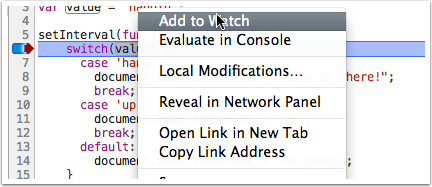
  • Right-click on value, and select “Add to Watch”
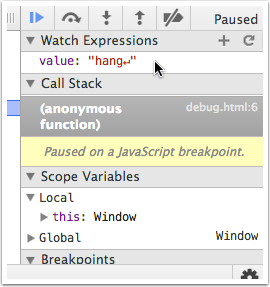
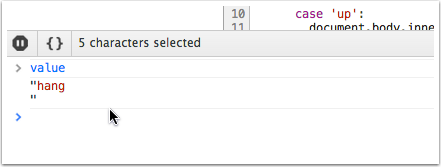
  • Over on the right in Watch Expressions, you now see value. And you can clearly see the carriage return symbol that’s part of value.

And we’ve found our problem. But that’s not all! While we’re here, let’s just make sure our switch statement works, given the right input. We can change what’s inside value without reloading the script.

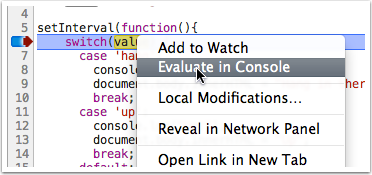
  • Right-click on value and select “Evaluate in Console”. A console should open
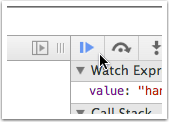
  • Inside the console type value='hang'. Then, start the script running again by click on the Play button over on the right. You should now see “Hang in there!” on the page, and the script will pause again at the breakpoint. This time, put value='up' and click the Play button again.
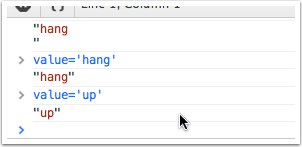
This only scratches the surface of what you can do in the debugger - click around the panels on the right. Hopefully this will help you get started using it.

Migrated

Bye bye posterous, hello octopress! Just a simple test post.

Troubleshooting SSL Cert With Rbenv/ruby 1.9.3

Using rbenv to run ruby 1.9.3-p327 on OSX 10.8, I kept hitting this error in a rails app I was working on: Faraday::Error::ConnectionFailed (SSL_connect returned=1 errno=0 state=SSLv3 read server certificate B: certificate verify failed): This wasn’t happening under system ruby 1.8.7. I found a lot of rvm specific info, but not much on fixing for rbenv.

First (unsuccessful) solution I tried installing updated openssl (via brew) & to rebuild ruby using CONFIGURE_OPTS=--with-openssl-dir=`brew --prefix openssl` rbenv install 1.9.3-p327. Again, no luck - same error.

What finally worked was downloading the cacert.pem from http://curl.haxx.se/ca/. Install it where you want (i stuck it in /usr/local/etc/). Then, just add export SSL_CERT_FILE=/usr/local/etc/cacert.pem to your .zshrc (or .bashrc) and you will be good to go!

Hope this helps save you some time. If you’ve discovered a better way, share it in the comments!

Making Toolbar Buttons That Respond to Longpress in Titanium for iOS

Turns out making a toolbar button that responds to longpress is not as straighforward as you’d think. Just making a button, and listening for longpress event doesn’t work once the button is put in a toolbar.  The trick turns out to be you need to put the button in a view. Here’s the example code:

The only drawback to using this method is you can’t use ‘systemButton’ styles.


Metafield Tip: Don’t Bother With Modify When Updating Products

Been spending some time looking into metafields.

Here’s something worth knowing to make your life easier.

When updating metafields on a product, turns out Create acts like Modify or Create if it doesn’t exist. As long as the namespace and key match an existing metafield on the product, the value will be updated, otherwise it will be created.

If you know of a good case when to use the Modify call, I’d love to hear it.

Shopify Meet/Drink Up

Do you work with the Shopify e-com platform? You in Montreal? Then join us (myself and Dave Lazar) for a meet & drink! We’ll be talking shop, trading tips, and other general silliness. All are welcome.

Where: The Irish Embassy - 1234 Rue Bishop

When: 6PM, Thursday September 1, 2011

RSVP’ing is not necessary, but a quick note @meeech on twitter or via email to let me know you’re planning to come will be helpful (to gauge how much space we need)

(Should note this is in no way an official Shopify event. Just some local users having a meetup.)

New Project: MailChimp TextMate Bundle

Started a project a back in Feb - a MailChimp TextMate bundle.

Overall, it’s gone pretty well - I levelled up in bundle making.

the project also couldn’t have come at a better time - i’m working a lot with MailChimp on the campaign side, so I will be using the bundle a fair bit day-to-day. 

This post up on the MailChimp blog has some good getting started instructions.

Anyone interested in writing a textmate bundle with php should have a look at the code - I’m pretty happy with the structure of this one.

I already begun using some of the code & lessons on the shopify tmbundle. :)


Update

Just a little update. Been a bit silent over here, since pretty deep in Happy Stuff these days.

Happy Stuff is based around the idea that many of us have things we’re done with, but they still work, so we don’t want to throw them out. Someone else could use that stuff, you just don’t know who. Happy Stuff is the easiest way to connect you to people in your area that want that stuff.

Come on over and check it out. We’re in closed testing right now, but sign up and we’ll let you know when we letting people in your area in. You can also follow @happystuff for updates.

Does Not Contain a Target Named

Note to self (and others): 

When making a Titanium mobile project if you get the error of style:

The project ‘FooApp.xcodeproj’ does not contain a target named ‘FooApp’

The problem is Name needs to match the last part of the Application Id.